Follow these simple steps to install your Kixie PowerCall Dialer and start prospecting!
Before we get started, let's first login to Kixie.
From the Kixie login page:
- Sign-in to your account using the following credentials:
- Username: Your unique UCEP email address
- Password: UPDATE (Do NOT change your password unless instructed otherwise)
If you don't know your Kixie phone number, or have not joined our CRM:
- Please contact Steven Tole immediately.
Once you're logged into Kixie:
- Scroll down on the left-side bar of the webpage, and navigate to the “Support" section located at the bottom of the bar
- Click on the “Install PowerCall Dialer” icon:
- Looks like this:

- This will redirect you to the Google Chrome Kixie PowerCall Extension or you can simply click on the image below:
- Looks like this:

- Looks like this:
- This will redirect you to the Google Chrome Kixie PowerCall Extension or you can simply click on the image below:
- Looks like this:
- Click on the “Install PowerCall Dialer” icon:
From the Chrome Web Store:
- Click “Add to Chrome” and then “Add extension” in the pop-up window
- Another pop-up window will appear confirming the Kixie PowerCall extension has been added and will ask if you want to “Turn on sync…” – just click the "X" in the top right corner of that pop-up
After that:
Pin the extension to your Google Tool Bar by clicking the puzzle icon located at the top right of a Google Chrome webpage:- Looks like this:

- Once the dropdown menu appears, click on the thumbtack symbol to pin the extension:
- Looks like this:

- Note: This will make the dialer easily opened & accessible if you ever close the dialer’s window by mistake or want to "send-to-front" on your screen
- Additionally: the Kixie PowerCall Dialer will have opened after downloading the extension. The Dialer symbol can be found on your desktop’s taskbar:
- Looks like this:

- Looks like this:
- Additionally: the Kixie PowerCall Dialer will have opened after downloading the extension. The Dialer symbol can be found on your desktop’s taskbar:
- Note: This will make the dialer easily opened & accessible if you ever close the dialer’s window by mistake or want to "send-to-front" on your screen
- Looks like this:
- Once the dropdown menu appears, click on the thumbtack symbol to pin the extension:
Now, let's sync your Kixie to our CRM:
- Login to the dialer extension using the same credentials listed at the top of this article
- Once logged into the dialer, click on the three-lined dropdown menu icon at the top right of the dialer's window:
- Looks like this:

- From there, click on the first icon for “Settings”:
- Looks like this:

- Look for “CRM” on the list and select that option:
- Looks like this:

- This will take you to a new page.
- Click on the "+" symbol:
- Looks like this:

- Looks like this:
- Click on the "+" symbol:
- This will take you to a new page.
- Looks like this:
- Look for “CRM” on the list and select that option:
- Looks like this:
- From there, click on the first icon for “Settings”:
- Looks like this:
- Once logged into the dialer, click on the three-lined dropdown menu icon at the top right of the dialer's window:
- Type “HubSpot” into the search bar that appears and select that CRM:
- Looks like this:
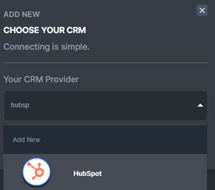
- Click the “Add” button:
- Looks like this:

- This will open a pop-up window:
- Looks like this:
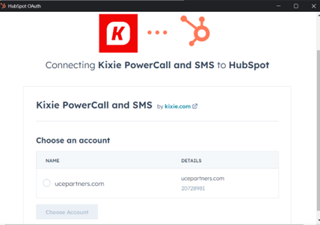
- Lastly, select the account option listed, and your Kixie PowerCall Dialer will now be in sync with HubSpot.
- Looks like this:
- This will open a pop-up window:
- Looks like this:
- Click the “Add” button:
- Looks like this:
🎉~ Congratulations ~🎉
You now have access to Kixie and have completed all required steps for set-up and easy access to this tool!
If you experienced any issues or need assistance in any of the steps listed above, please connect with a sales manager or your on-boarding representative.
Now...